Use the Visual Builder
The ADK Visual Builder is a feature of the ADK web interface that provides a visual workflow design environment for creating and managing agents. The Visual Builder allows you to design, build, and test agents in a beginner-friendly graphical interface, and includes an AI-powered assistant to help you build agents.
Experimental
The Visual Builder feature is an experimental release. We welcome your feedback!
Create an agent
To use the Visual Builder, start the ADK web interface:
Then follow the steps below to create an agent.
Tip: Run from a code development directory
The Visual Builder tool writes project files to new subdirectories located in the directory where you run ADK Web. Make sure you run this command from a developer directory location where you have write access.
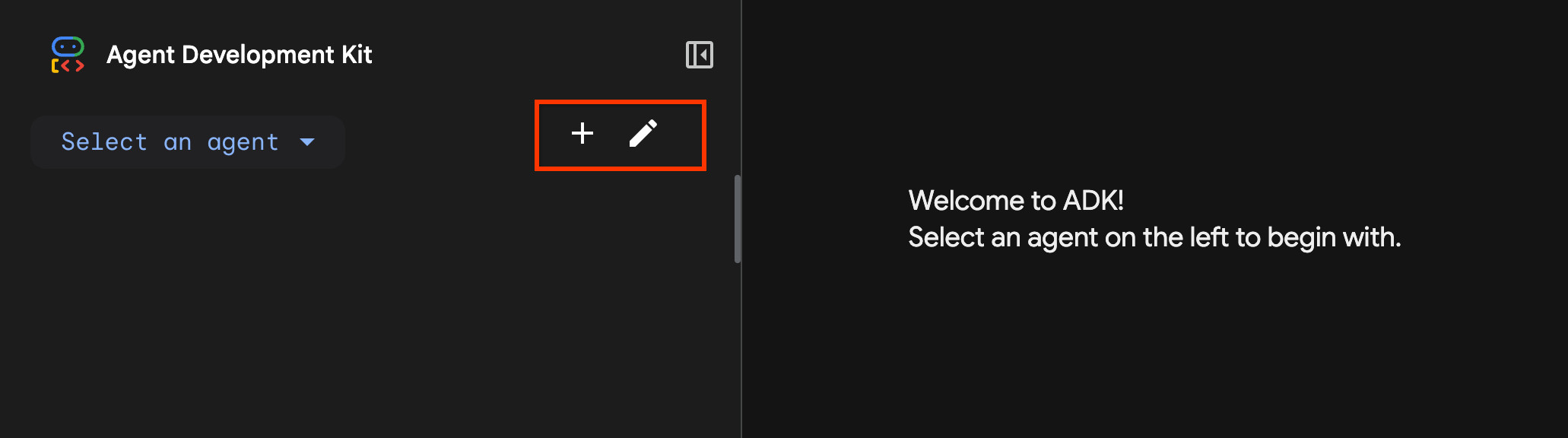 Figure 1: ADK Web controls to start the Visual Builder tool.
To create an agent with Visual Builder:
- In top left of the page, select the + (plus sign), as shown in Figure 1, to start creating an agent.
- Type a name for your agent application and select Create.
- Edit your agent by doing any of the following:
- In the left panel, edit agent component values.
- In the central panel, add new agent components.
- In the right panel, use prompts to modify the agent or get help.
- In bottom left corner, select Save to save your agent.
- Interact with your new agent to test it.
- In top left of the page, select the pencil icon, as shown in Figure 1, to continue editing your agent.
Here are a few things to note when using Visual Builder:
- Create agent and save: When creating an agent, make sure you select Save before exiting the editing interface, otherwise your new agent may not be editable.
- Agent editing: Edit (pencil icon) for agents is only available for agents created with Visual Builder
- Add tools: When adding existing custom Tools to a Visual Builder agent, specify a fully-qualified Python function name.
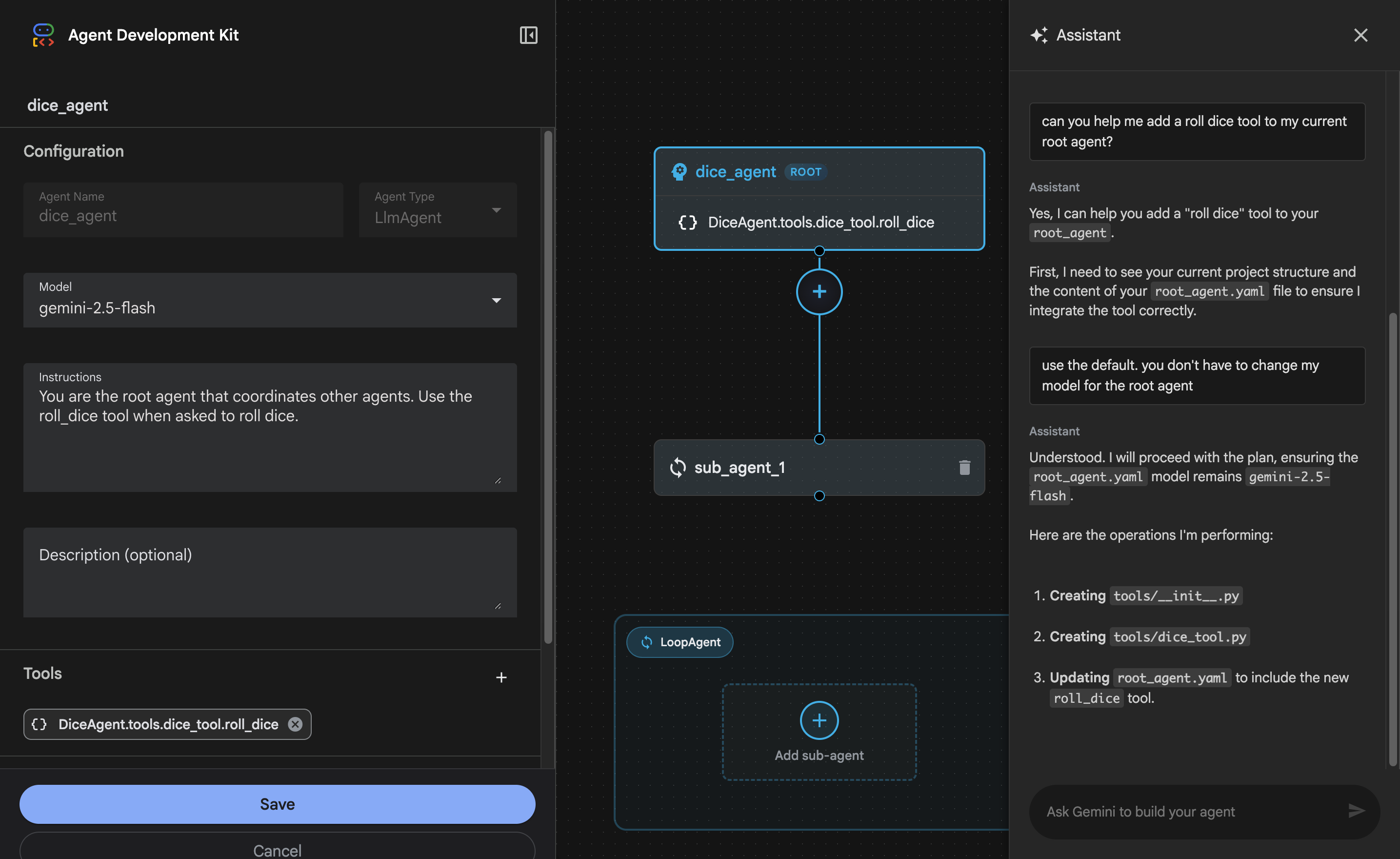
Try this prompt with the Visual Builder assistant
Supported components
The Visual Builder tool provides a drag-and-drop user interface for constructing agents, as well as an AI-powered development Assistant that can answer questions and edit your agent workflow. The tool supports all the essential components for building an ADK agent workflow, including:
- Agents
- Root Agent: The primary controlling agent for a workflow. All other agents in an ADK agent workflow are considered Sub Agents.
- LLM Agent: An agent powered by a generative AI model.
- Sequential Agent: A workflow agent that executes a series of sub-agents in a sequence.
- Loop Agent: A workflow agent that repeatedly executes a sub-agent until a certain condition is met.
- Parallel Agent: A workflow agent that executes multiple sub-agents concurrently.
- Tools
- Prebuilt tools: A limited set of ADK-provided tools can be added to agents.
- Custom tools: You can build and add custom tools to your workflow.
- Components
- Callbacks A flow control component that lets you modify the behavior of agents at the start and end of agent workflow events.
Some advanced ADK features are not supported by Visual Builder due to limitations of the Agent Config feature. For more information, see the Agent Config Known limitations.
Generated project structure
The Visual Builder tool generates code in the Agent Config
format, using .yaml configuration files for agents and Python code for custom
tools. These files are generated in a subfolder of the directory where you ran
the ADK web interface. The following listing shows an example layout for a
DiceAgent project:
DiceAgent/
    root_agent.yaml    # main agent code
    sub_agent_1.yaml   # sub agents (if any)
    tools/             # tools directory
        __init__.py
        dice_tool.py   # tool code
Editing generated agents
You can edit the generated files in your development environment. However, some changes may not be compatible with Visual Builder.
For more information on the Agent Config code format used by Visual Builder, see Agent Config and Agent Config YAML schema.